Carletter is a car software that supports mainstream mobile phone interconnection and screen projection, which supports Apple CarPlay, Android Auto, Apple AirPlay screen mirroring, and Android Cast screen mirroring.
Carletter is a car software that supports mainstream mobile phone interconnection and screen projection, which supports Apple CarPlay, Android Auto, Apple AirPlay screen mirroring, and Android Cast screen mirroring. Install an APP, you can support all interconnection technologies and Apple and Android mobile phone audio and video full-screen mirror projection technology; A connected car software that allows you to enjoy audio, video and games in the car as you want.
Apple CarPlay
Android Auto
Apple AirPlay
Android Cast
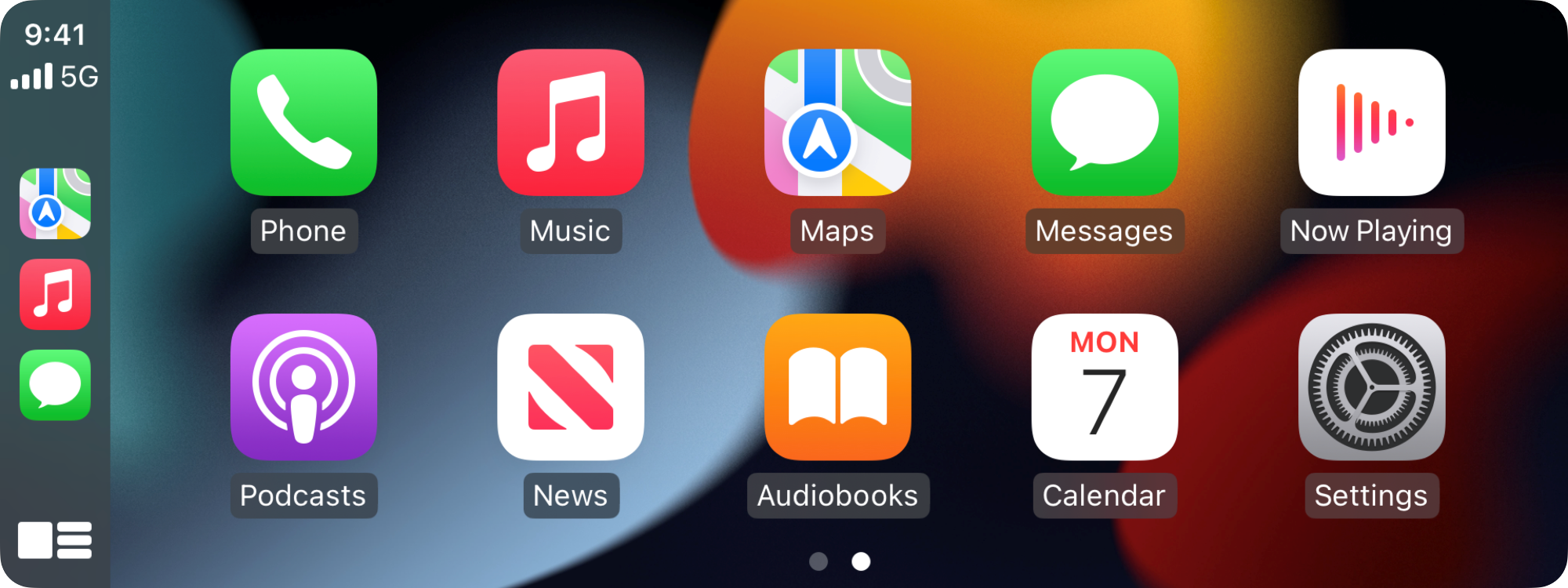
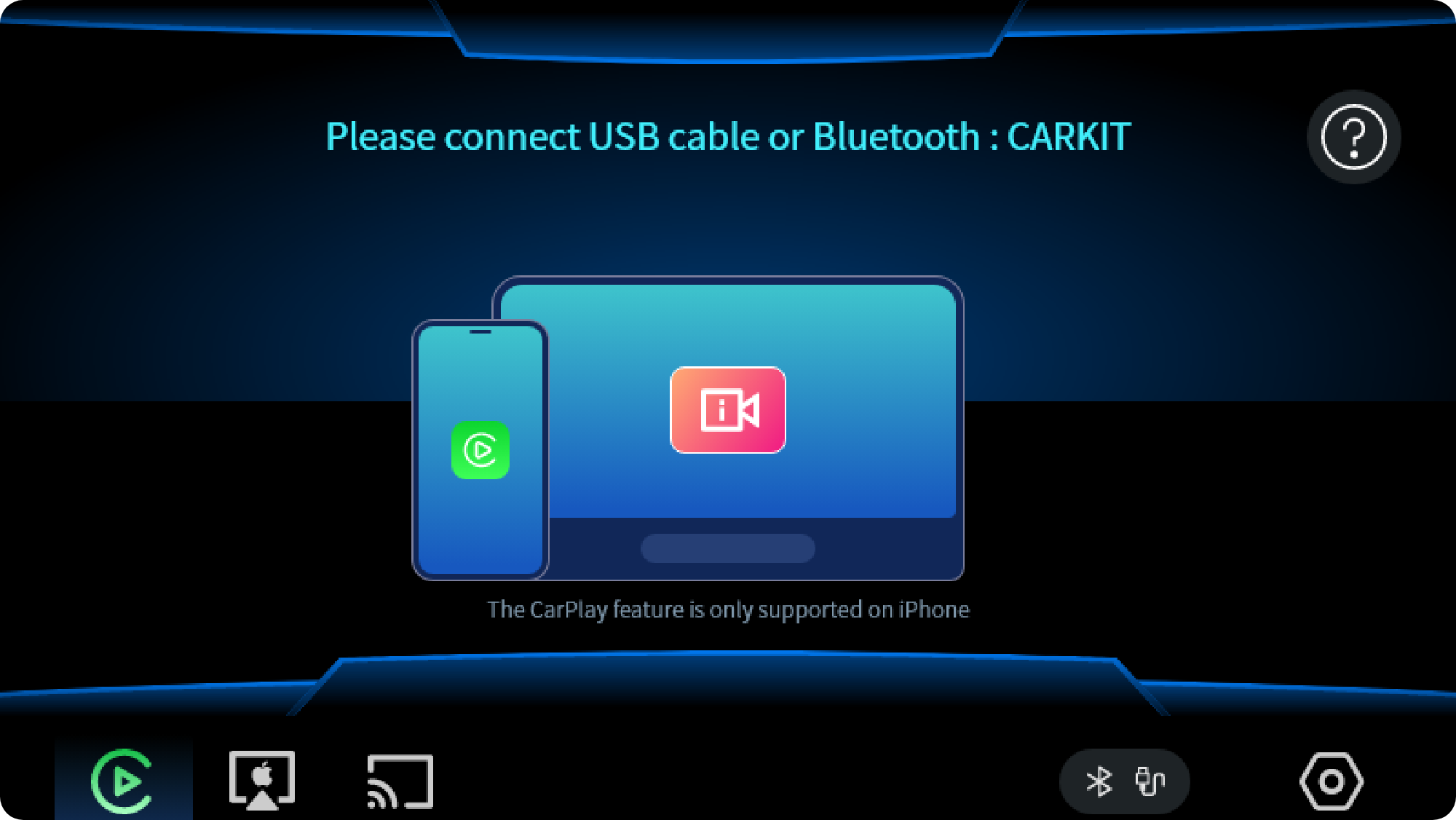
CarPlay software interface
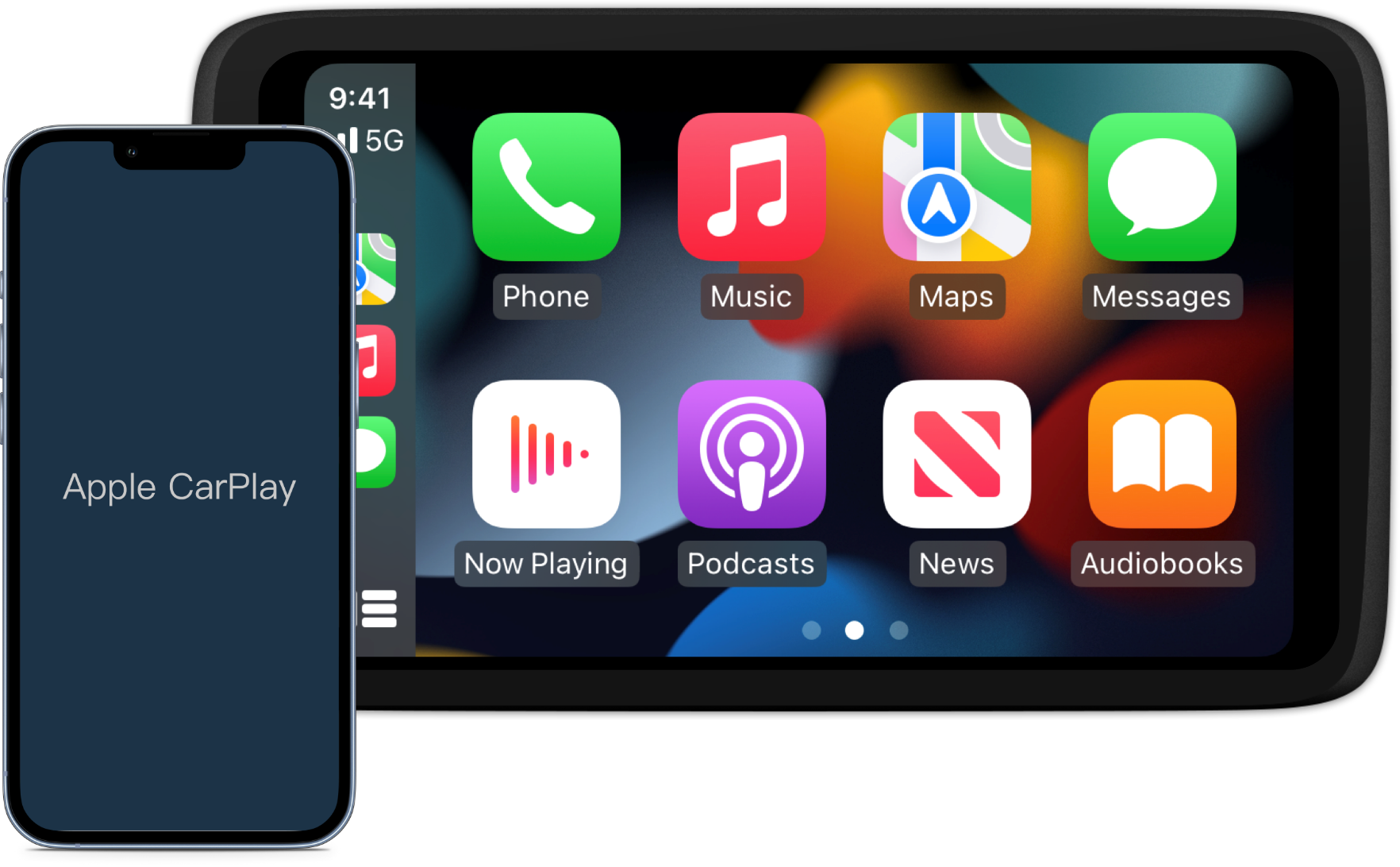
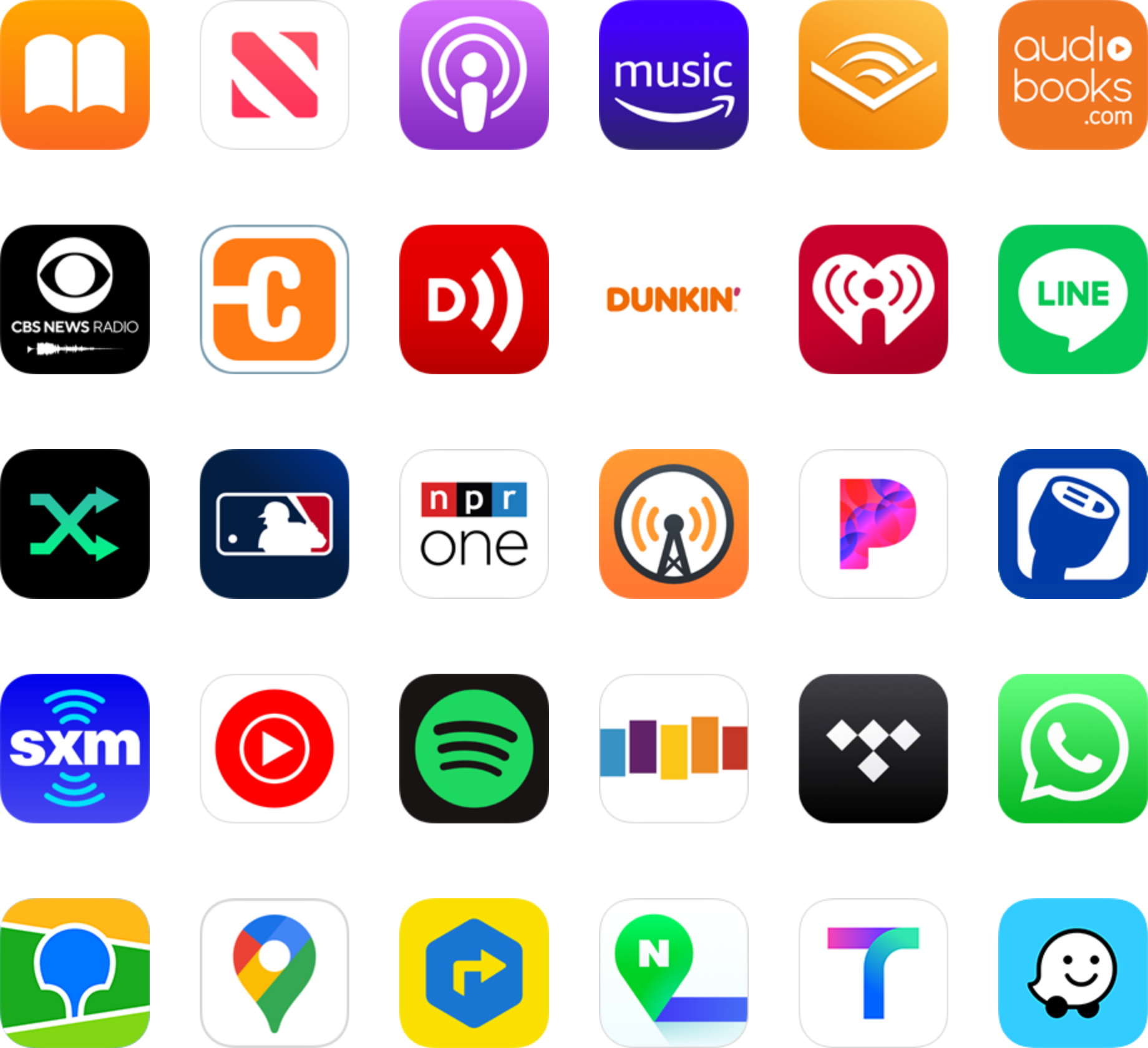
CarPlay is an in-vehicle system released by Apple in the United States, which seamlessly integrates the user's iOS device, iOS experience and dashboard system. With CarPlay, the car can be connected to devices such as iPhones, and using the built-in display and control keys in the car, users can use the software installed in the mobile phone on the screen of the car navigator. The software on the mobile phone is adapted to CarPlay, and the software operation is more suitable for driving. Users can easily and securely make calls, listen to music, send and receive messages, use navigation, and more.
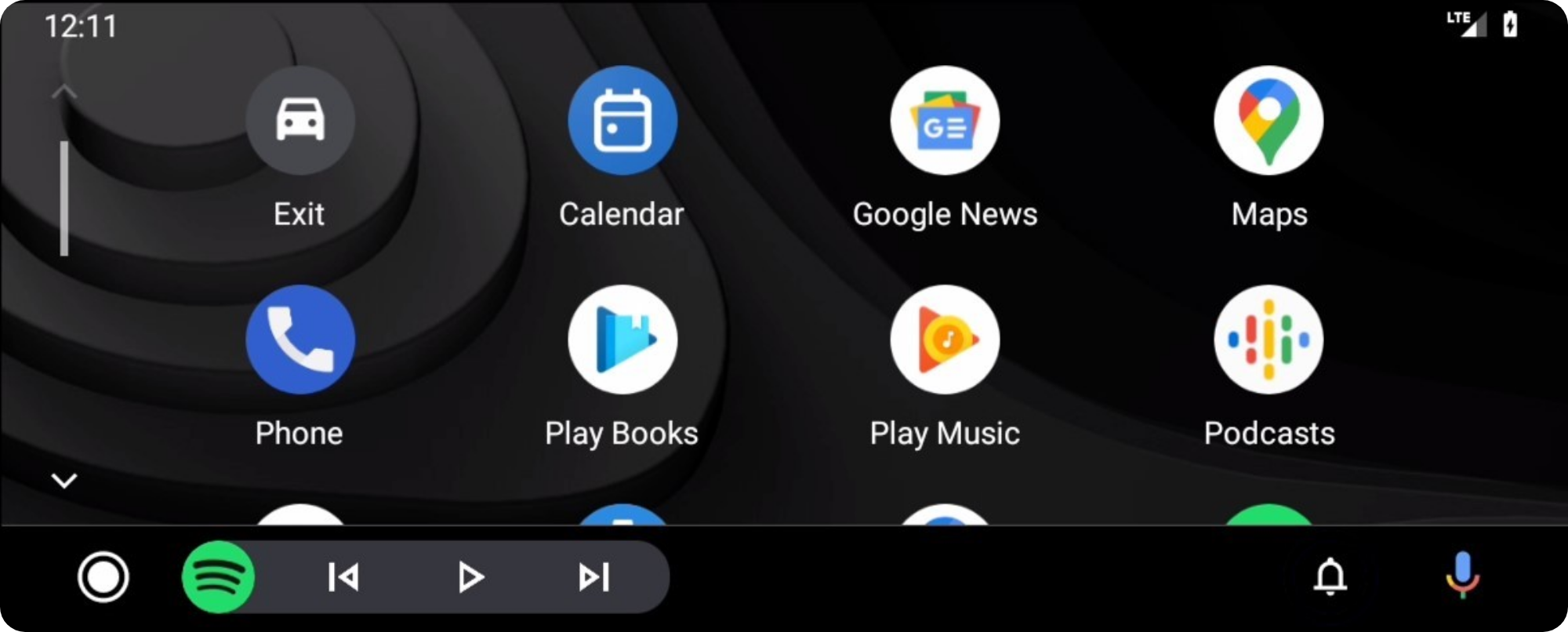
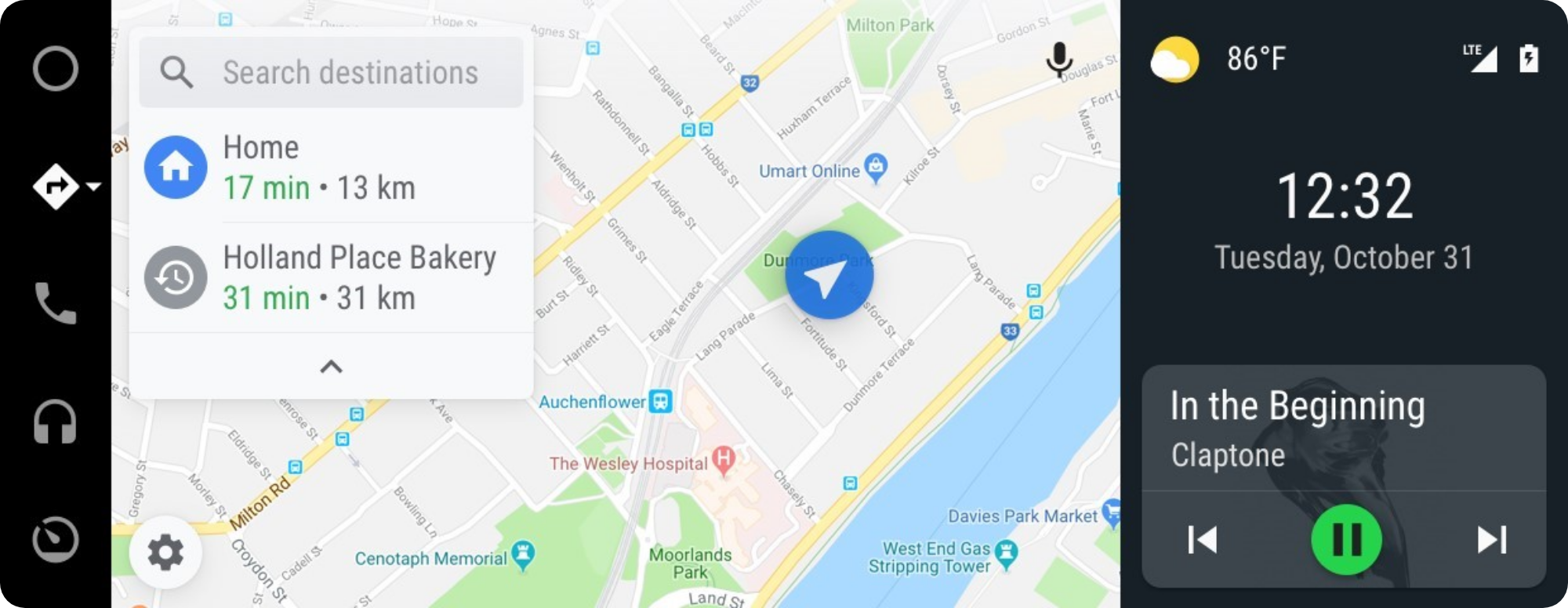
Android Auto software interface
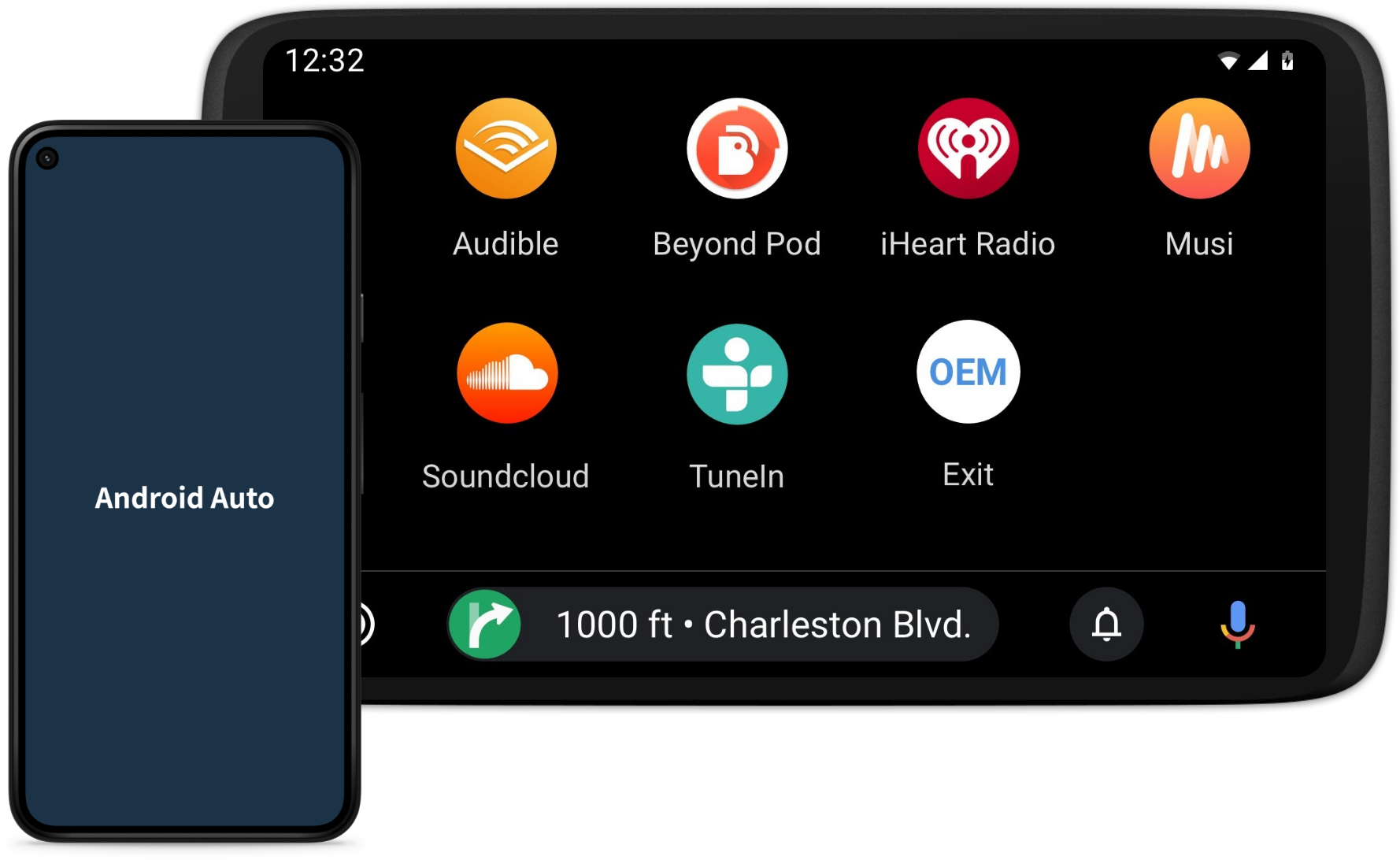
Android Auto is Google's launch of the in-car mobile phone interconnection feature designed specifically for cars. It is possible to safely operate the applicable apps while driving, support Google Maps, music, phone calls, etc., and also download apps for Android Auto such as the live chat software what's app, Skype, etc. on the Google Play Store, which are feature-rich.
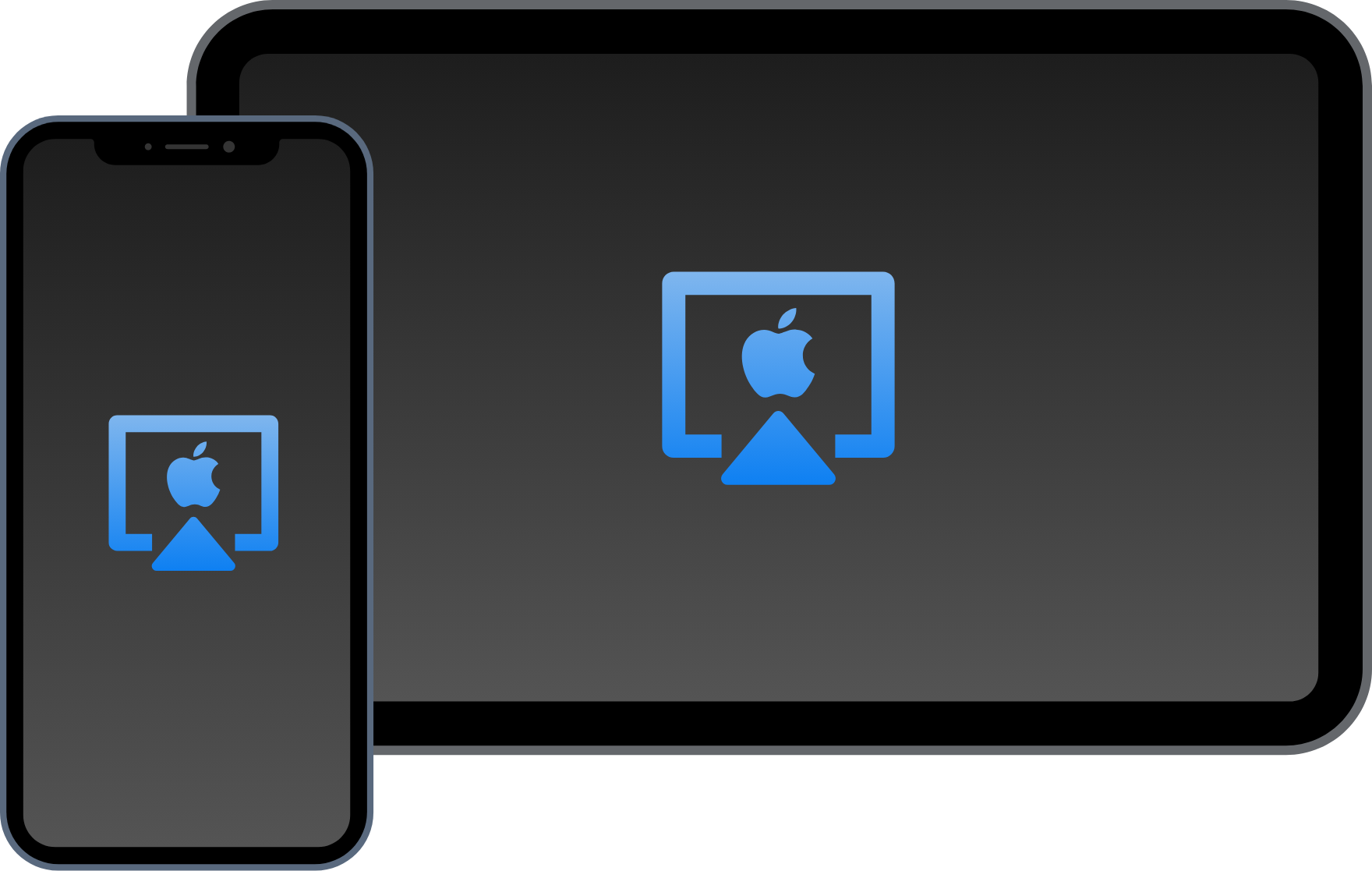
Apple AirPlay Screen Mirror
Apple mobile phone user screen mirroring, through this function users can project the content displayed on the mobile phone screen to the car screen in real time.
Android Cast Screen Mirror
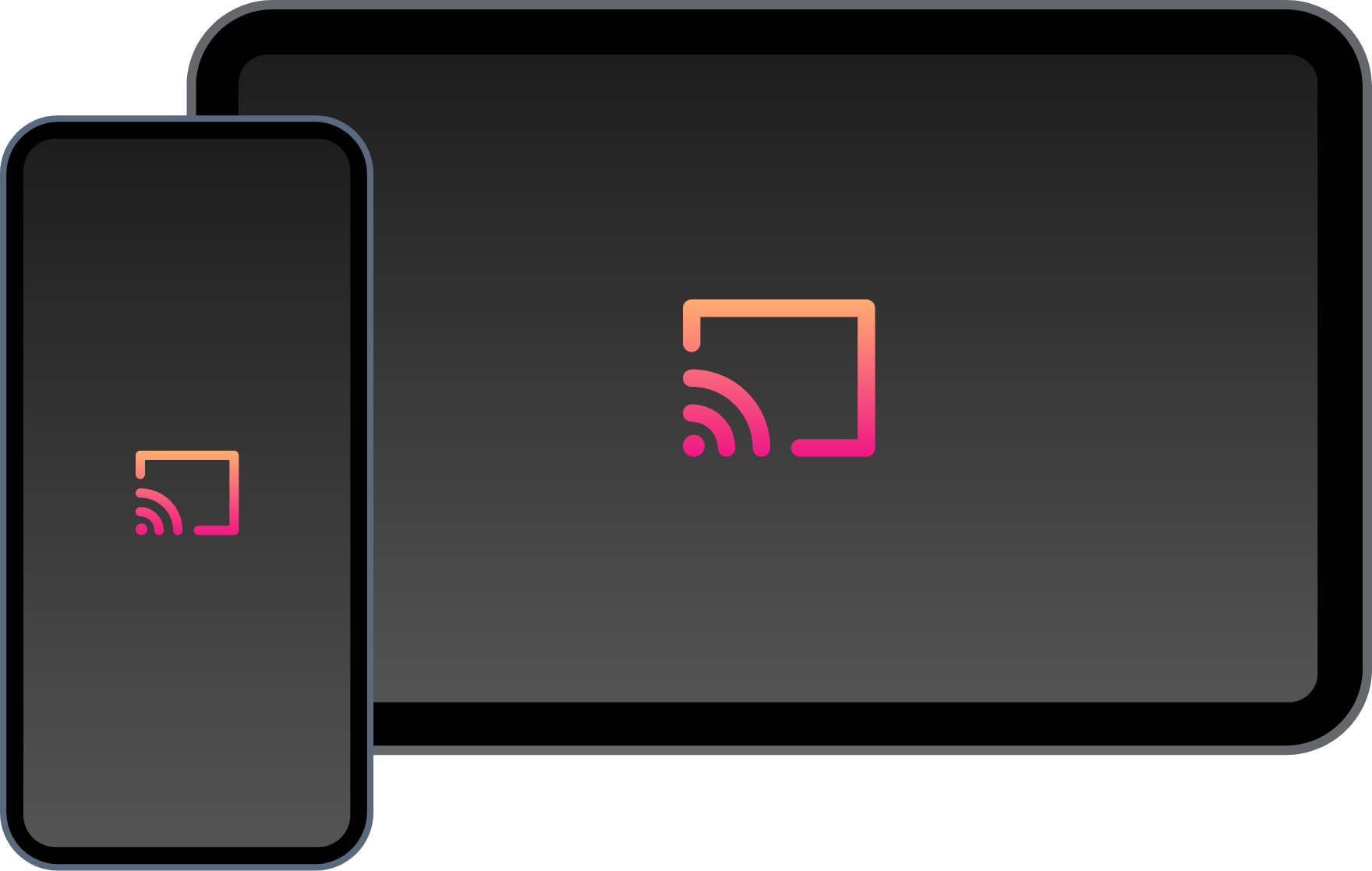
Android mobile phone screen mirroring, after installing the mobile phone APP, you can perform full-screen mirror screen projection.
1. Basic operation of the software
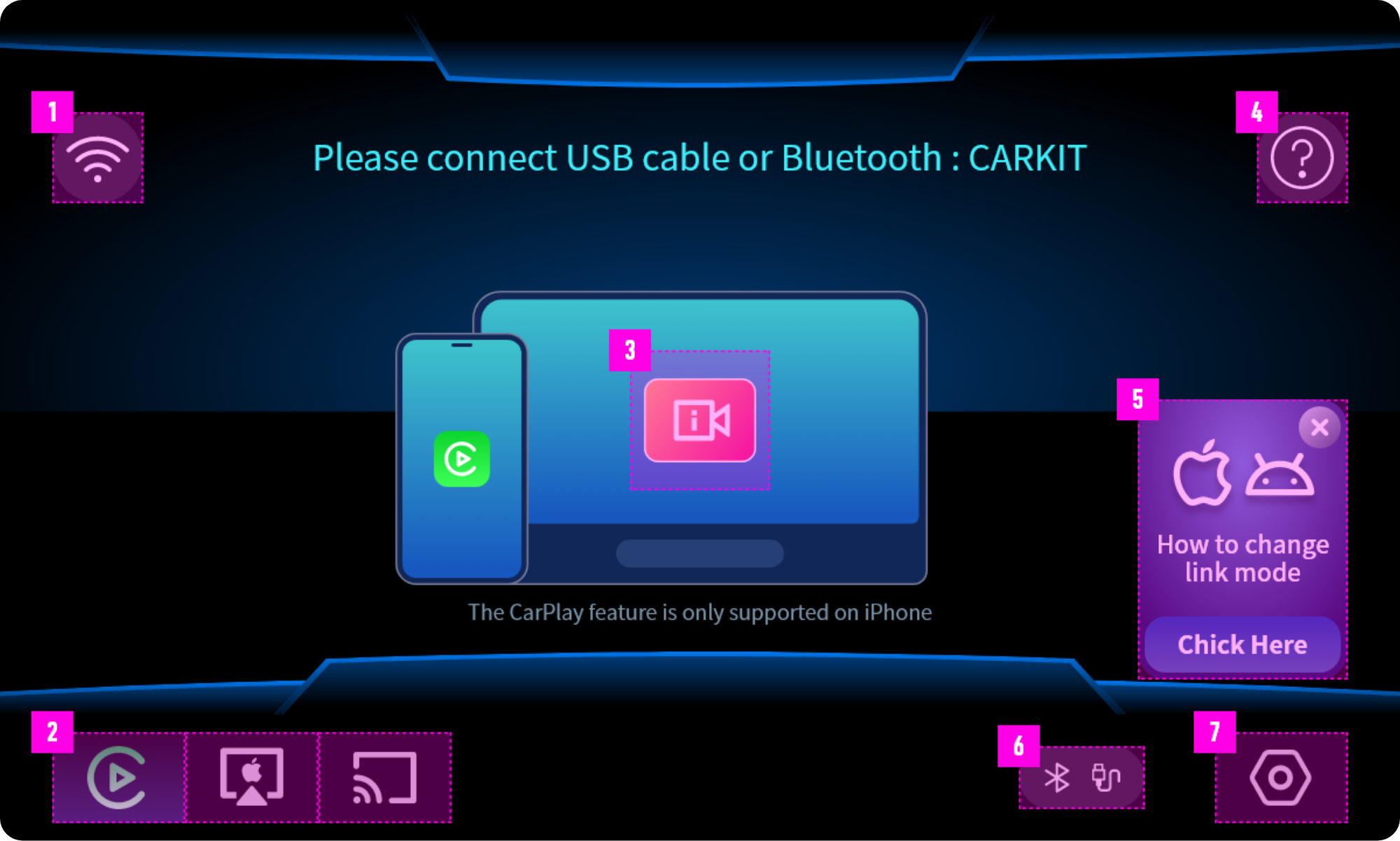
CarLetter software main interface
Software ribbon
1.onnecttoWiFi:Whenyouneedtosetupawirelessnetwork,youcanclickthisbuttontosetupthecarnetwork.
2.Functionswitching:Clicktoswitchtothedesiredinterconnection/projectionmode.
3.Helpvideo:Clicktoplaythehelpguidevideoofthecurrentfunction.
4.UsehelpanddownloadmobileAPP:ClicktoviewtheQRcodeofsoftwareusehelpanddownloadmobileAPP,anduserscanscanthecodetoviewthecorrespondingcontent.
5.QuickGuide:SomefunctionpagescanbefoundhereforQuickGuideorusetips.
6.USB,Bluetooth,WiFiconnectionstatusindication:USB,Bluetooth,wirelessnetworkstatusindicatoricon,whenthecorrespondingconnectionissuccessful,thisiconwilllightup.
7.Softwaresettings:Clicktoenterthesoftwaresettingsinterface.
2. Apple CarPlay tutorial to use
Tips: Apple CarPlay supports wired and wireless two connection methods, because of the hardware differences of each car machine, there may be some models of car machine only support one of the connection methods, please judge which connection method your car supports according to the text prompts of the software interface in actual use. Or judge according to the indicator icon type on the left side of the setting icon on the CarPlay function page of the software.
1. CarLetter software is on the CarPlay function page;
2. Use the data cable to connect the Apple mobile phone and the car machine;
3. Check "Allow" in the phone pop-up window. You can use the CarPlay function on the car terminal.
1. CarLetter software is on the CarPlay function page;
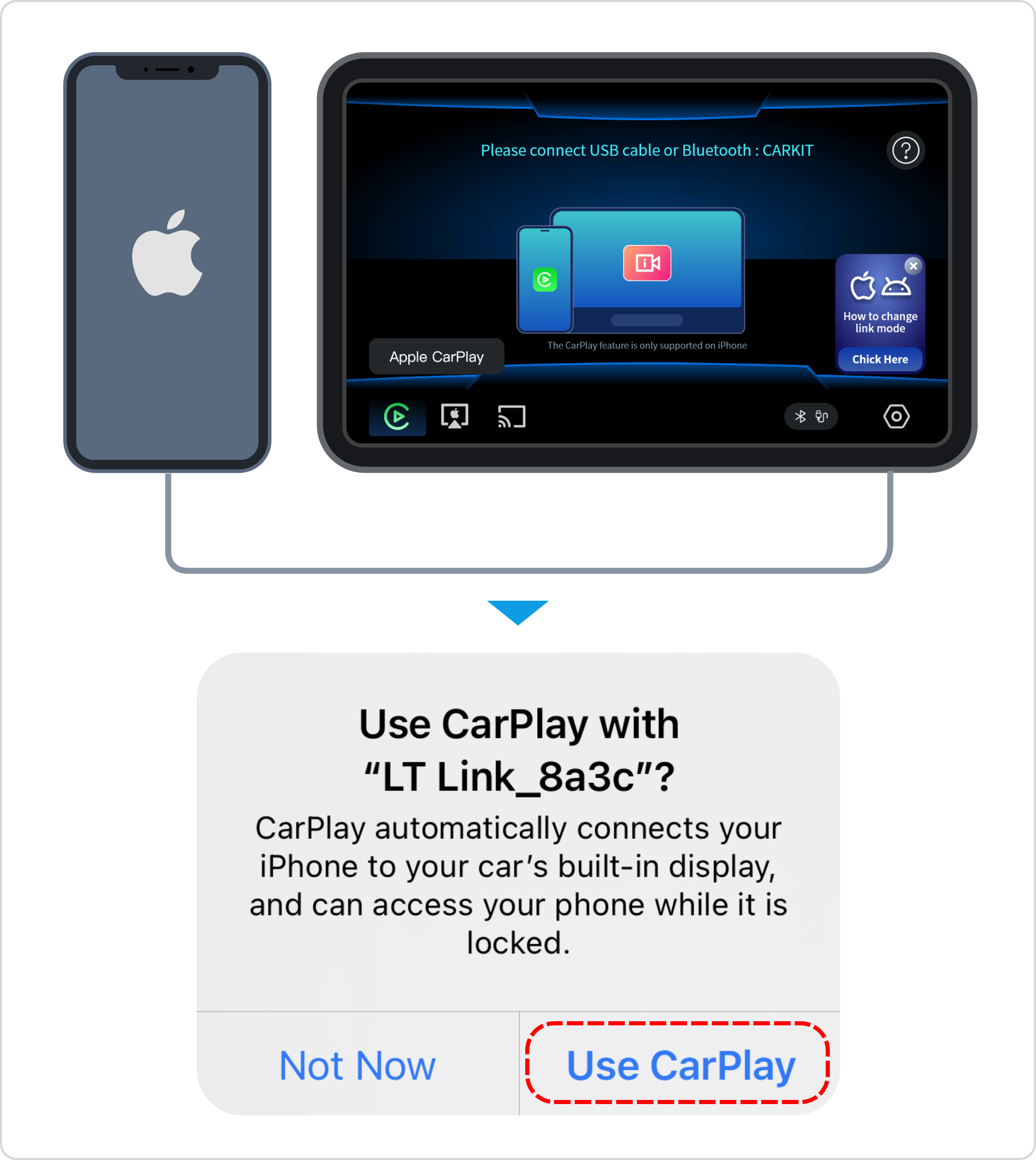
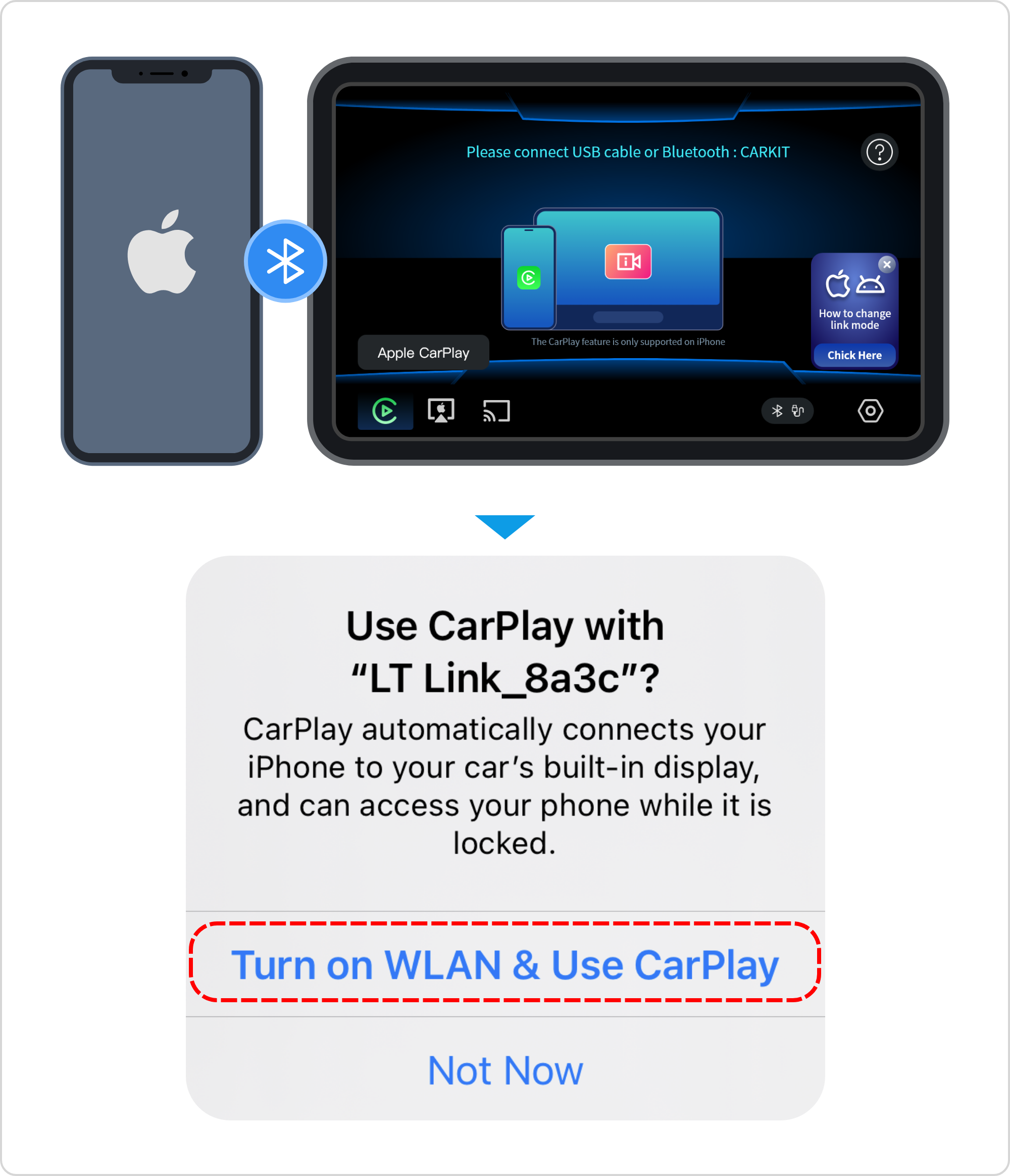
2. Connect the mobile phone to the car machine Bluetooth (do not manually turn on or off the wifi and hotspot of the mobile phone and the car machine after connecting to Bluetooth, the system will automatically set it);
3. Select "Use CarPlay" in the pop-up window of the mobile phone.
After CarPlay is successfully connected, you can use the mobile APP on the car terminal.
You can use your phone's map to make and receive calls, send text messages through Siri, play music from your phone, check your calendar, and more.
CarPlay also supports other apps on your iPhone, such as your favorite audio, messaging, and voice apps, as well as third-party parking and quick ordering apps.
CarPlay's dashboard supports third-party navigation apps directly, giving you more options to get you to your destination.
3. Android Auto tutorial to use
Tips: This feature is available for Android phones.。
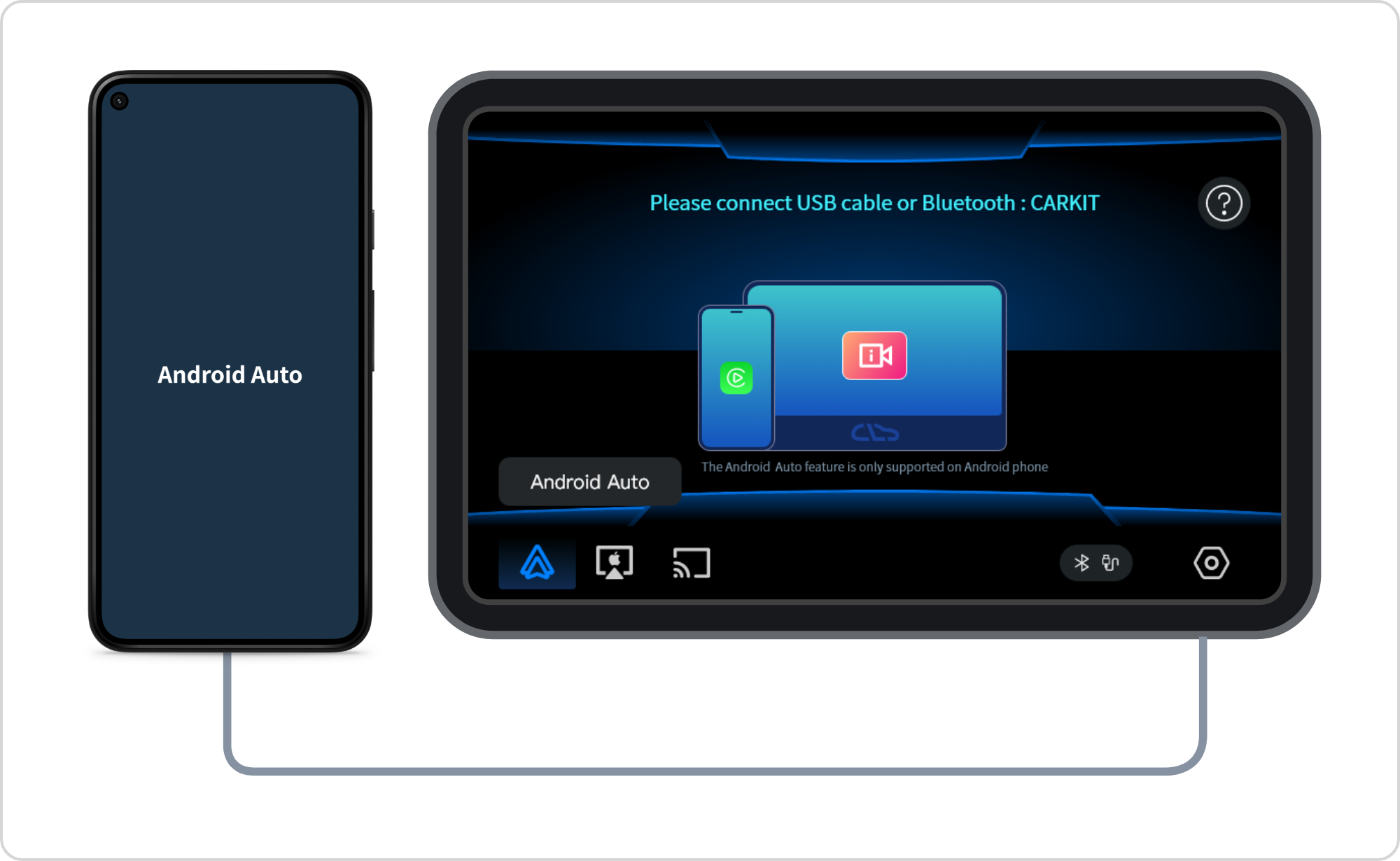
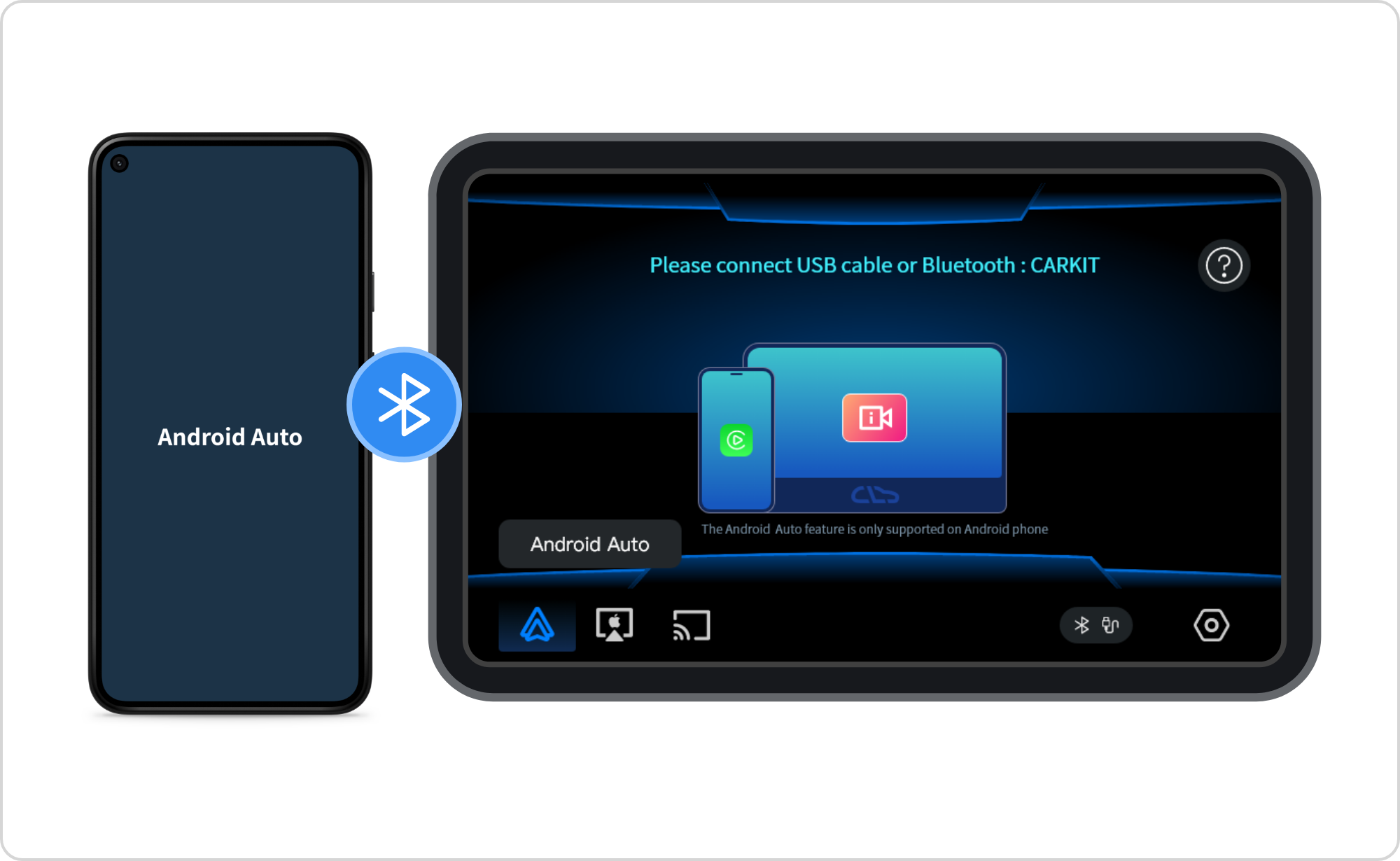
1. CarLetter software is on the Android Auto function page; ;
2. Use the data cable to connect the Android phone and the car machine; Wait a few seconds to use the Android Auto feature.
Use wireless Android Auto
1. CarLetter software is on the Android Auto function page;
2. Connect the mobile phone to the car machine Bluetooth (do not manually turn on or off the wifi and hotspot of the mobile phone and the car machine after connecting to Bluetooth, the system will automatically set it); Wait a few seconds to use the Android Auto feature.
Screen mirroring with Apple AirPlay
Screen mirroring with Apple AirPlay
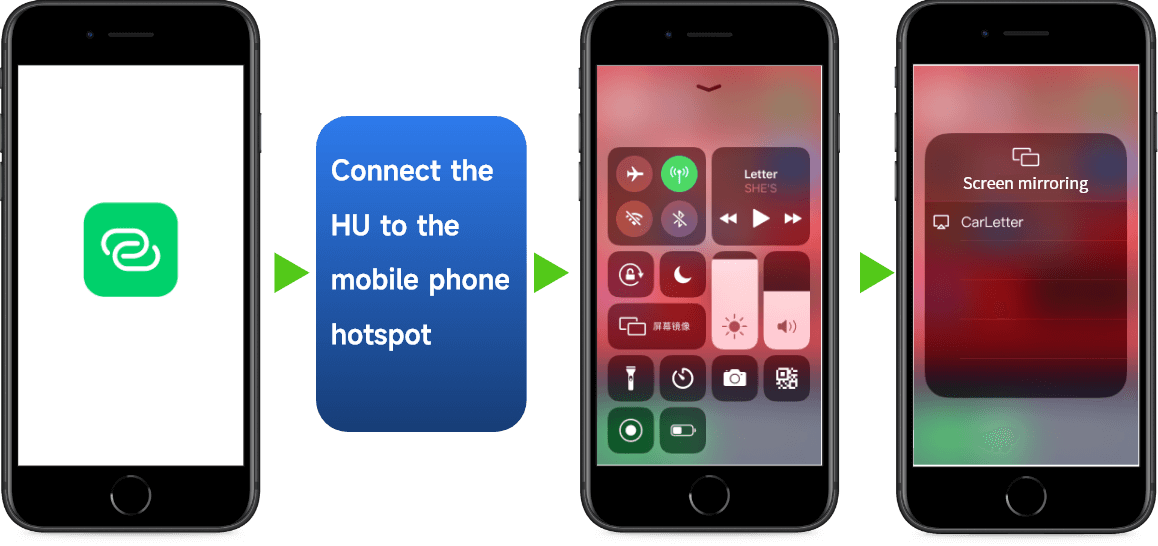
1.CarLetter software is on the AirPlay function page;
2. Turn on the mobile hotspot function of the mobile phone;
3. Connect the car to the mobile phone hotspot;
4. Select "Screen Mirroring" in the phone control center;
5. Select the vehicle device in the "Screen Mirroring" pop-up window. to start casting screen mirroring. When using Apple AirPlay full-screen mirroring, it needs to be operated on the mobile phone, does not support reverse control, and the mobile phone cannot lock the screen.
After the screen casting is successful, it is recommended to use a mobile phone APP that supports landscape use, such as video playback
5.Android Cast tutorial to use
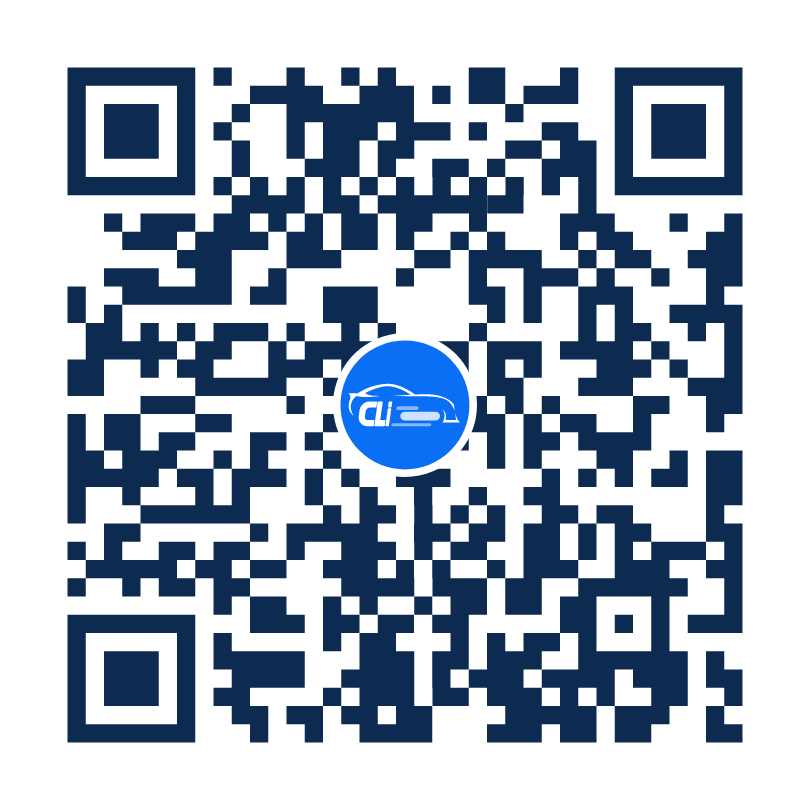
Tips: Before using Android Cast screen mirroring, please scan the QR code to download and install the mirroring APP (Android phones only)
Use Android Cast screen mirroring
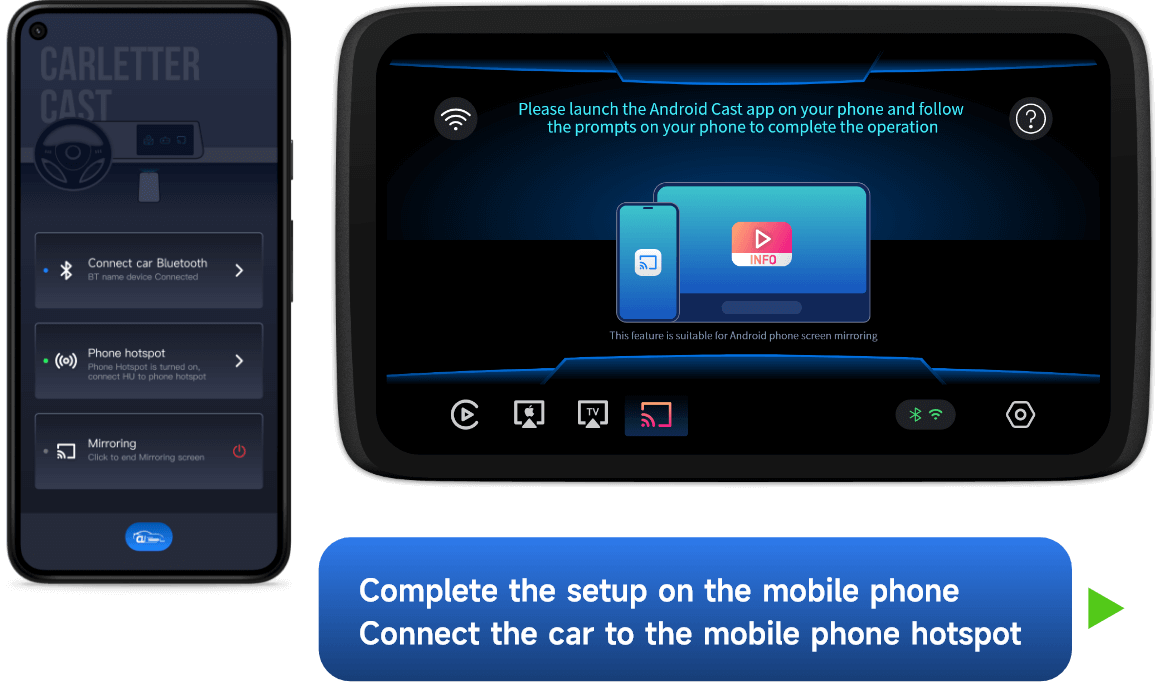
1. Start the APP to connect to the Bluetooth of the car machine and turn on the mobile phone hotspot;
1. Start the APP to connect to the Bluetooth of the car machine and turn on the mobile phone hotspot; 2. The car terminal is on the Android Cast function page;
3. Connect the car to the mobile phone hotspot;
4. Click "Screen Cast" in the mobile APP to start full-screen mirror projection.
Android Cast function requires Bluetooth for sound transmission, please make sure that the Bluetooth connection between the mobile phone and the car machine is normal before using this function. When using Android Cast full-screen mirroring, it needs to be operated on the mobile phone, does not support reverse control, and the mobile phone cannot lock the screen.